2017年5月28日日曜日

Google Cloud SDK インストール

theaucitron

Google Cloud SDK install

↓ここからアーカイブファイルをダウンロードします。
https://cloud.google.com/sdk/docs/quickstart-mac-os-x

解凍します。
$ sudo tar -xzvf Downloads/google-cloud-sdk-145.0.0-darwin-x86_64.tar.gz -C /usr/local


インストールします。
$ /usr/local/google-cloud-sdk/install.sh
Welcome to the Google Cloud SDK!

To help improve the quality of this product, we collect anonymized usage data
and anonymized stacktraces when crashes are encountered; additional information
is available at <https://cloud.google.com/sdk/usage-statistics>. You may choose
to opt out of this collection now (by choosing 'N' at the below prompt), or at
any time in the future by running the following command:

    gcloud config set disable_usage_reporting true

Do you want to help improve the Google Cloud SDK (Y/n)?  Y

Your current Cloud SDK version is: 145.0.0
The latest available version is: 156.0.0

┌────────────────────────────────────────────────────────────────────────────────────────────────────────────────┐
│                                                   Components                                                   │
├──────────────────┬──────────────────────────────────────────────────────┬──────────────────────────┬───────────┤
│      Status      │                         Name                         │            ID            │    Size   │
├──────────────────┼──────────────────────────────────────────────────────┼──────────────────────────┼───────────┤
│ Update Available │ BigQuery Command Line Tool                           │ bq                       │   < 1 MiB │
│ Update Available │ Cloud SDK Core Libraries                             │ core                     │   6.1 MiB │
│ Update Available │ Cloud Storage Command Line Tool                      │ gsutil                   │   2.9 MiB │
│ Not Installed    │ App Engine Go Extensions                             │ app-engine-go            │  96.7 MiB │
│ Not Installed    │ Cloud Bigtable Command Line Tool                     │ cbt                      │   4.0 MiB │
│ Not Installed    │ Cloud Bigtable Emulator                              │ bigtable                 │   3.3 MiB │
│ Not Installed    │ Cloud Datalab Command Line Tool                      │ datalab                  │   < 1 MiB │
│ Not Installed    │ Cloud Datastore Emulator                             │ cloud-datastore-emulator │  15.4 MiB │
│ Not Installed    │ Cloud Datastore Emulator (Legacy)                    │ gcd-emulator             │  38.1 MiB │
│ Not Installed    │ Cloud Pub/Sub Emulator                               │ pubsub-emulator          │  21.0 MiB │
│ Not Installed    │ Emulator Reverse Proxy                               │ emulator-reverse-proxy   │  14.5 MiB │
│ Not Installed    │ Google Container Registry's Docker credential helper │ docker-credential-gcr    │   2.3 MiB │
│ Not Installed    │ gcloud Alpha Commands                                │ alpha                    │   < 1 MiB │
│ Not Installed    │ gcloud Beta Commands                                 │ beta                     │   < 1 MiB │
│ Not Installed    │ gcloud app Java Extensions                           │ app-engine-java          │ 132.2 MiB │
│ Not Installed    │ gcloud app PHP Extensions (Mac OS X)                 │ app-engine-php-darwin    │  21.9 MiB │
│ Not Installed    │ gcloud app Python Extensions                         │ app-engine-python        │   6.2 MiB │
│ Not Installed    │ kubectl                                              │ kubectl                  │  14.8 MiB │
│ Installed        │ Default set of gcloud commands                       │ gcloud                   │           │
└──────────────────┴──────────────────────────────────────────────────────┴──────────────────────────┴───────────┘
To install or remove components at your current SDK version [145.0.0], run:
  $ gcloud components install COMPONENT_ID
  $ gcloud components remove COMPONENT_ID

To update your SDK installation to the latest version [156.0.0], run:
  $ gcloud components update


Modify profile to update your $PATH and enable shell command 
completion? (Y/n)?  Y

The Google Cloud SDK installer will now prompt you to update an rc 
file to bring the Google Cloud CLIs into your environment.

Enter a path to an rc file to update, or leave blank to use 
[/Users/xxxxx/.bash_profile]:  
Backing up [/Users/xxxxx/.bash_profile] to [/Users/xxxxx/.bash_profile.backup].
[/Users/xxxxx/.bash_profile] has been updated.

==> Start a new shell for the changes to take effect.


For more information on how to get started, please visit:
  https://cloud.google.com/sdk/docs/quickstarts


シェルを再起動します。
$ exec -l $SHELL

SDKを初期化します。
$ sudo gcloud init
Welcome! This command will take you through the configuration of gcloud.

Settings from your current configuration [default] are:
Your active configuration is: [default]

[core]
account = xxxxx@gmail.com
disable_usage_reporting = False

Pick configuration to use:
 [1] Re-initialize this configuration [default] with new settings 
 [2] Create a new configuration
Please enter your numeric choice:  1

Your current configuration has been set to: [default]

You can skip diagnostics next time by using the following flag:
  gcloud init --skip-diagnostics

Network diagnostic detects and fixes local network connection issues.
Checking network connection...done.                                                                                             
Reachability Check passed.
Network diagnostic (1/1 checks) passed.

Choose the account you would like use to perform operations for this 
configuration:
 [1] xxxxx@gmail.com
 [2] Log in with a new account
Please enter your numeric choice:  1

You are logged in as: [xxxxx@gmail.com].


This account has no projects. Please create one in developers console (https://console.developers.google.com/project) before running this command.

コンポーネントをアップデートします。
$ sudo gcloud components update
Your current Cloud SDK version is: 145.0.0
You will be upgraded to version: 156.0.0


以上、ローカルへのSDKインストールでしたー

2017年5月27日土曜日

ssh github

by Sky Eckstrom

ssh github

~ $ ssh-keygen -t rsa
Generating public/private rsa key pair.
Enter file in which to save the key (/Users/xxxxx/.ssh/id_rsa): 
/Users/xxxxx/.ssh/id_rsa already exists.
Overwrite (y/n)? y
Enter passphrase (empty for no passphrase): 
Enter same passphrase again: 
Your identification has been saved in /Users/xxxxx/.ssh/id_rsa.
Your public key has been saved in /Users/xxxxx/.ssh/id_rsa.pub.
The key fingerprint is:
SHA256:xxxxxxxxxxxxxxxxxxxxxxxxxxxxxxxxxxxxxxxxxxxxxxxxxxxxxxxx
The key's randomart image is:
+---[RSA 2048]----+
|xxxxxxx          |
|xxxxxxx          |
|xxxxxxx          |
|xxxxxxx          |
|xxxxxxx          |
|xxxxxxx          |
|xxxxxxx          |
+----[SHA256]-----+
~ $ cd .ssh
.ssh $ vi config

(ここで config を編集します)

(githubに鍵を設定します)
SSH認証キーをGitHubへ設定する。(Mac用)- qiita

(↓接続確認します)
.ssh $ ssh github
The authenticity of host 'github.com (192.30.255.112)' can't be established.
RSA key fingerprint is SHA256:xxxxxxxxxxxxxxxxxxxxxxxxxxxxxxxxxxxxxxxxxxxx.
Are you sure you want to continue connecting (yes/no)? yes
Warning: Permanently added 'github.com,192.30.255.112' (RSA) to the list of known hosts.
PTY allocation request failed on channel 0
Hi xxxxx! You've successfully authenticated, but GitHub does not provide shell access.
Connection to github.com closed.


2017年5月16日火曜日

ドライブシャフトブーツ交換

Drive shaft boots exchange


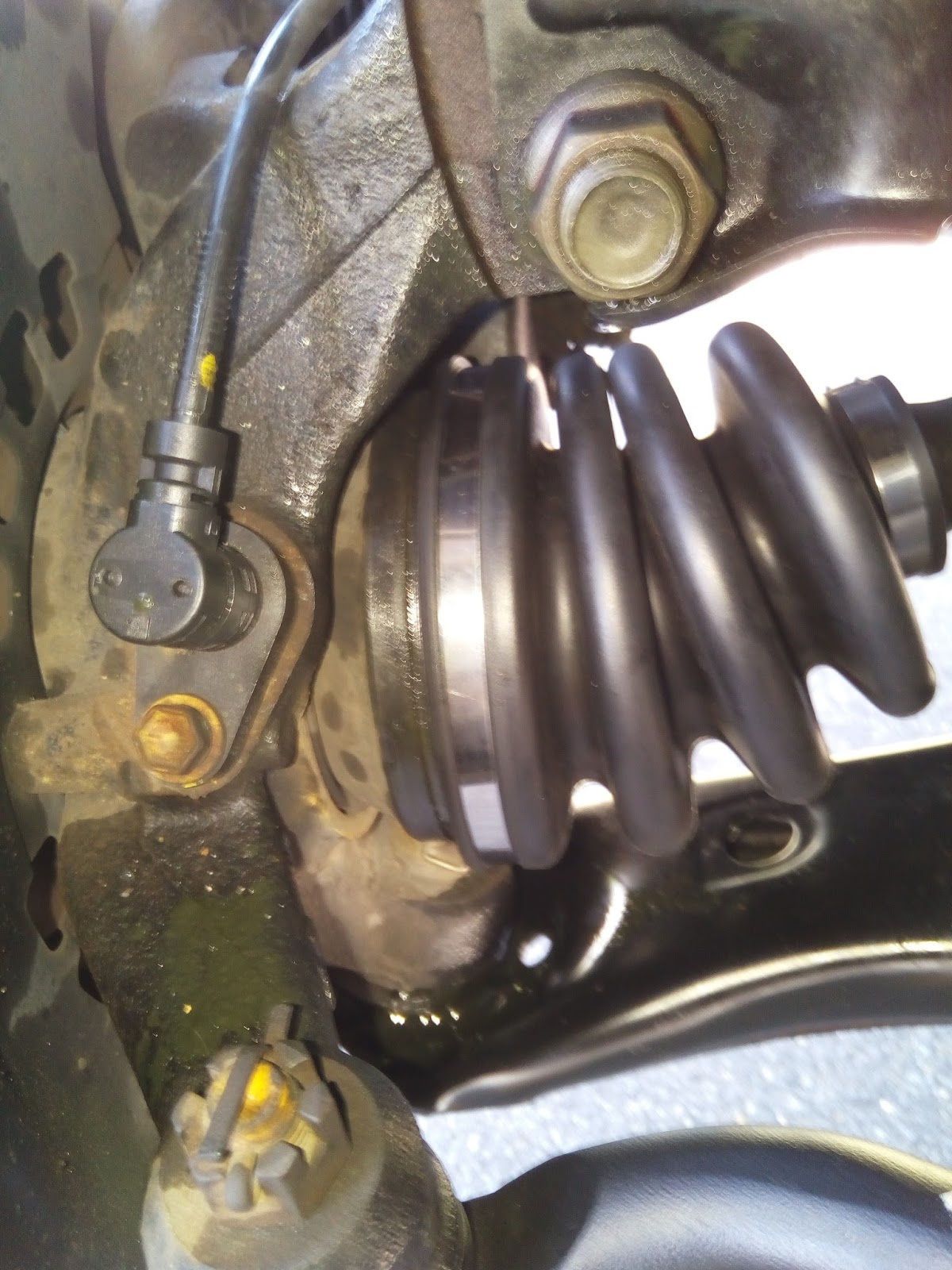
左のドライブシャフトブーツからグリスが漏れているようなので交換します。
Amazonでポチッと。届いたパーツはこんな感じ。

はじめての作業ですw
うまをかけて外したタイヤをボディの下に入れておきます。ジャッキも一応かけておきます。

ダンボールを下にひきます。ロアアームベトベトです。
ブーツをカッターで切って外します。ベトベトなので写真なし。
蛇腹に亀裂はなかったです。が、かなり固くなっていたのでタイヤ側がずれたのかなと思います。
ちなみに、スタビロッド(画像右のほうに写っている縦の棒)は車検のときに交換済みです。

古いグリスを拭き取りました。少し残っていますが。。。
ここに新しいグリスを充填します。

タイヤ側から分割部分を接合していきます。ここ時間かかりました。
位置をあわせて金属バンドで固定します。

いまのところ大丈夫のようです。
はじめての作業でしたが、説明書がわかり易く迷うことはありませんでした。
分割部分のはめ込みに時間がかかったくらい

当初、レンタルピット http://shinwajikou.jp/ の利用を考えていたのですが、土日は予約でいっぱいとのこと。
フロアジャッキとジャッキスタンドをホームセンターで購入しました。
Amazonより安かった!

次は右側か。。。

2017年5月14日日曜日

Samsung SSD 500GB 850 EVO

Samsung SSD 500GB 850 EVO

MacBook Pro (13-inch, Mid 2012) 
SSDへ換装しました。画像の上がSSD、下がHDDです。
側面のネジ、サイズのあうアーレンキーがなかったのでペンチでクルッと。


TimeMachineで入れ替えついでにOSも macOS Sierra(10.12.4) へアップグレードしました。
メモリ16GB, SSD 500GB。まだいける!

2017年2月28日火曜日

Docker for Mac

Docker for Mac


こちらからインストール

ターミナルで確認
~ $ docker --version
Docker version 1.13.1, build 092cba3
~ $ docker-compose --version
docker-compose version 1.11.1, build 7c5d5e4
~ $ docker --version
Docker version 1.13.1, build 092cba3
~ $ docker-machine --version
docker-machine version 0.9.0, build 15fd4c7

hello-world
~ $ docker run hello-world
docker: Cannot connect to the Docker daemon at tcp://192.168.59.103:2376. Is the docker daemon running?.
See 'docker run --help'.
エラー!?

sudo つけてみた、、、
~ $ sudo docker run hello-world
Password:
Unable to find image 'hello-world:latest' locally
latest: Pulling from library/hello-world
78445dd45222: Pull complete
Digest:
Status: Downloaded newer image for hello-world:latest

Hello from Docker!
This message shows that your installation appears to be working correctly.
To generate this message, Docker took the following steps:
1. The Docker client contacted the Docker daemon.
2. The Docker daemon pulled the "hello-world" image from the Docker Hub.
3. The Docker daemon created a new container from that image which runs the
executable that produces the output you are currently reading.
4. The Docker daemon streamed that output to the Docker client, which sent it
to your terminal.
To try something more ambitious, you can run an Ubuntu container with:
$ docker run -it ubuntu bash
Share images, automate workflows, and more with a free Docker ID:
https://cloud.docker.com/
For more examples and ideas, visit:
https://docs.docker.com/engine/userguide/

web server
~ $ docker run -d -p 80:80 --name webserver nginx
docker: Cannot connect to the Docker daemon at tcp://192.168.59.103:2376. Is the docker daemon running?. See 'docker run --help'.
エラー!?

sudoつけてみた、、、
~ $ sudo docker run -d -p 80:80 --name webserver nginx
Password:
Unable to find image 'nginx:latest' locally
latest: Pulling from library/nginx
5040bd298390: Pull complete
31123d939af1: Pull complete
23f1bdd267a9: Pull complete
Digest:
Status: Downloaded newer image for nginx:latest

ブラウザで localhost みると、、、


オーケー!

プロセスみてみる、、、sudoつけてね
~ $ sudo docker ps
CONTAINER ID IMAGE COMMAND CREATED STATUS PORTS NAMES
9e4134e2e67d nginx "nginx -g 'daemon ..." 17 minutes ago Up 16 minutes 0.0.0.0:80->80/tcp, 443/tcp webserver

nginxが動いているね。

webserver を止めてみる、、、
~ $ sudo docker stop webserver
webserver
~ $ sudo docker ps -a
CONTAINER ID IMAGE COMMAND CREATED STATUS PORTS NAMES
6ed0928c3844 hello-world "/hello" 7 minutes ago Exited (0) 7 minutes ago kind_bhabha
9e4134e2e67d nginx "nginx -g 'daemon ..." 19 minutes ago Exited (0) 9 seconds ago webserver

nginxがExitedしているね。

webserverのコンテナを削除してみる、、、
~ $ sudo docker rm -f webserver
webserver
~ $ sudo docker ps -a
CONTAINER ID IMAGE COMMAND CREATED STATUS PORTS NAMES
6ed0928c3844 hello-world "/hello" 8 minutes ago Exited (0) 8 minutes ago kind_bhabha

削除されているね。


以上、

Get started with Docker for Mac

でした。

2017年1月4日水曜日

走れメロス

Run, Melos!

箱根駅伝、今年も感動しました。
このCMもグッときます。


2016年12月14日水曜日

VS code をコマンドラインから起動

Enable VS code to boot from the command line.

VS code をコマンドラインから起動できるようにします。
  1. command + shift + p でコマンドパレットを開いて、
  2. "shell" と入力して、
  3. "シェル・コマンド:PASH 内に 'code' コマンドをインストールします" を選択します。

これだけ


ターミナルで "code .[enter]" と入力すると VS code が起動できます。
$ code . 
あら便利!